
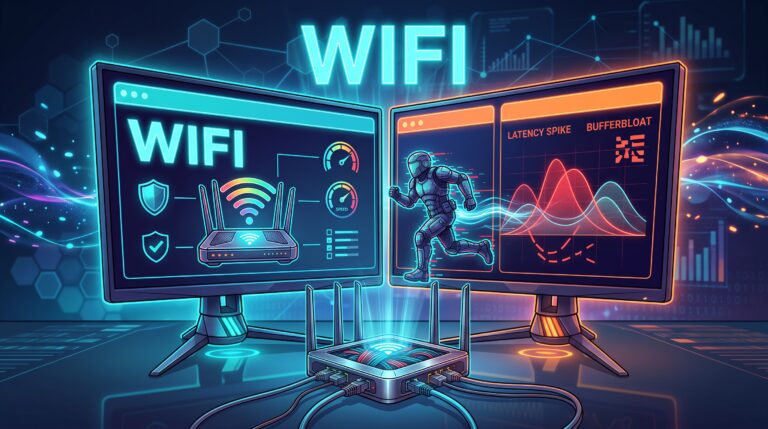

You sign up for a 1 Gb/s symmetrical fibre-optic connection, connect via a modern Wi-Fi 6 router or an Ethernet cable, run a speed test in your browser and see an excellent result: a ping of 8 ms, and full download and upload bandwidth. It seems that the network infrastructure is working flawlessly.
You visit the leaderboard server and the problems begin:
The in-game network indicator reports sudden spikes in packet loss of between 1-5 per cent.
Your opponent’s character moves back half a metre on the screen every few seconds (known as ‘rubberbanding’).
A burst of fire from a weapon doesn’t register any hits, and the destruction animations appear with a delay.
Many players immediately ring their internet service provider’s (ISP) helpline or invest in expensive network cards. In the vast majority of cases, the problem lies elsewhere entirely: in the Windows network stack, a phenomenon known as ‘bufferbloat’, and conflicts between USB bus interrupts and network cards at the processor level.
Where do network bottlenecks in the operating system come from? How to clear the packet path using SmoothWizard.
What is Bufferbloat and why can a gigabit connection still suffer from lag?
Technical definition:
Bufferbloat is an undesirable network condition in which a router or system network driver buffers an excess of data in a queue instead of immediately discarding or forwarding it. This results in a sudden surge in latency (ping) precisely when another device in the home starts sending or downloading data.
Imagine this scenario: you’re playing a competitive first-person shooter, and your ping is a steady 15 ms. At the same time, someone on your home network starts playing a 4K film, whilst Windows sends a telemetry packet to Microsoft’s servers in the background:
Game packets (small, weighing in at a few dozen bytes, requiring immediate delivery) end up in the shared system buffer.
They get blocked by massive download or video streaming packets.
In a fraction of a second, your ping jumps from 15 ms to 180 ms.
When the game server does not receive your character’s position data in time, it discards the delayed packets, resulting in packet loss and jerky gameplay.
Connection speed (e.g. 600 Mb/s or 1 Gb/s) determines only the bandwidth, not the speed at which a single packet reaches its destination. In esports, the only thing that matters is consistent, predictable latency without buffering.
3 hidden network bottlenecks in Windows
1. The Nagle algorithm and delayed acknowledgements (Delayed ACK):
The default TCP protocol in Windows has been optimised for transferring large files, not for online gaming. The built-in algorithm combines several small packets into one larger one before sending, delaying transmission by a dozen or so milliseconds. In multiplayer games, this introduces artificial network input lag.
2. Network throttling via the multimedia scheduler (Network Throttling Index):
Windows has a built-in network throttling mechanism which, by default, limits the bandwidth of network packets whenever any multimedia application is running, thereby preventing older network cards from freezing. On a modern PC, this mechanism artificially throttles the flow of packets from the game.
3. Coincidence of network interrupts with the game’s main thread (DPC Interrupts):
The network card (LAN or Wi-Fi) constantly sends interrupts to the processor, requesting immediate processing of a received data packet. If Windows routes the network card’s interrupts to the same CPU core that is executing the game’s main logic loop, this results in simultaneous screen freezing and the loss of a network packet.
Comparison of network behaviour before and after optimisation:
| Network status / Parameter | Default Windows configuration | After optimisation with SmoothWizard |
| Idle ping | 12-18 ms | 10-14 ms |
| Ping under load (Bufferbloat) | Spikes of up to 90-220 ms | Stable 14-20 ms |
| Packet loss during battles | Temporary spikes of 1-4% | 0% (No lost frames) |
| Domain name resolution (DNS lookup) | 35-80 ms (Default router) | 5-12 ms (Optimal DNS) |
| Smoothness of character models (Interpolation) | Jerkiness, teleportation | Smooth, predictable model movement |
1. Automatic DNS scanner and optimiser
The default DNS addresses assigned by local internet service providers are often overloaded, which increases the time taken to connect to game servers and websites. SmoothWizard has a built-in module that tests the world’s most popular and fastest DNS servers in real time. With a single click, the programme finds the address with the lowest response time for your location and immediately applies it to the system.
2. Network Interface Card Interrupt Allocation (CPU Affinity)
SmoothWizard’s advanced core management module assigns the game process to high-performance physical cores (P-Cores), whilst offloading network stack handling and download tasks to auxiliary threads. As a result, a packet from the server is processed in a fraction of a millisecond without interfering with the rendering of the graphics frame.
3. Blocking unwanted background connections in the PRO version
The most common cause of sudden packet loss in the middle of a match is the Windows Update service or telemetry diagnostics, which, at a random moment, decide to download a patch or send a report to Microsoft’s servers. The PRO module safely suspends these tasks behind an automatic System Restore point, ensuring that 100 per cent of the connection’s bandwidth is directed to the active game.
FAQ: Frequently Asked Questions
Does changing the DNS settings in SmoothWizard reduce ping in the game?
DNS (Domain Name System) is responsible for translating text-based addresses into IP addresses. Switching to a faster DNS drastically speeds up server searches, joining lobbies and loading network resources, but the ping during the match itself depends on the route determined by your internet service provider to the destination server.
Why does my Wi-Fi drop packets even though I have full signal strength?
Full signal strength simply indicates a strong radio signal between the antenna and the router. The Wi-Fi radio band is susceptible to interference from other networks in the vicinity and to packet queuing. Using the network buffer optimisation feature in SmoothWizard minimises the risk of radio congestion.
Does SmoothWizard interfere with my router’s settings?
No. The programme only optimises the way in which Windows receives, processes and forwards packets from the network card to the running game process, without modifying the router’s external software.
