
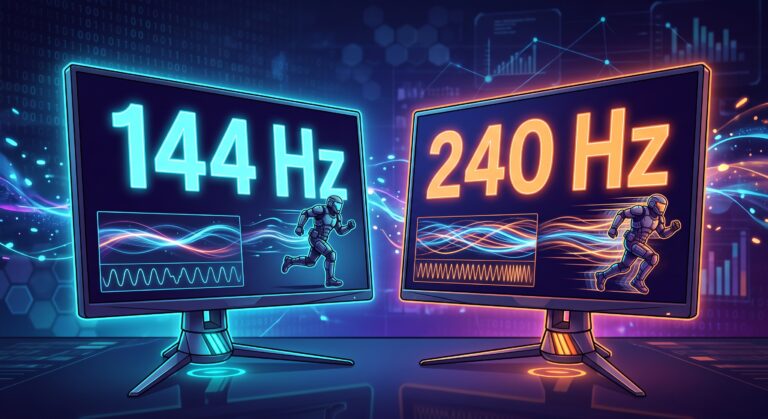

144 Hz or 240 Hz: why won’t a monitor on its own fix screen tearing in games?
For many gamers, investing in a modern gaming monitor is the first step towards smoother gameplay and better results in competitive gaming. Switching from a standard 60 Hz office monitor to a 144 Hz panel, 165 Hz or 240 Hz panel can radically change your perception of movement: the image becomes crisp, motion blur disappears, and the mouse cursor on the desktop moves with remarkable precision.
However, a frustrating problem soon arises: despite purchasing an expensive esports monitor, the game can still stutter unpleasantly during fast-paced battles in Counter-Strike 2, Valorant, Fortnite or Apex Legends. The counter in the corner of the screen shows 200 FPS, yet the crosshair wobbles, opponents’ animations stutter, and the image loses its buttery smoothness.
The key to understanding this phenomenon lies in the physics of the display’s refresh rate, the correlation between frame time and the 1% Low FPS metric, and the way the Windows operating system manages the processor and RAM.
What are you actually seeing on the screen?
The refresh rate, measured in hertz (Hz), determines how many times per second the monitor panel is capable of redrawing a full frame of the image. To understand just how massive an impact this has on input lag and responsiveness, it’s worth converting these values into the duration of a single frame:
60 Hz: Each frame remains on the screen for 16.67 milliseconds. If an opponent runs out from behind a wall, your monitor needs almost 17 ms just to start displaying the first pixel of their model.
144 Hz: The frame display time drops to 6.94 milliseconds. This represents a reduction in lag of nearly 10 ms compared to a standard screen.
240 Hz: The monitor takes just 4.16 milliseconds to display the next frame.
360 Hz – 540 Hz: The fastest competitive-grade panels generate a frame in a time ranging from 2.77 ms to as little as 1.85 milliseconds.
The difference between 60 Hz and 144 Hz is immediately visible to the naked eye, even when simply dragging windows around the desktop or scrolling through a web browser. In turn, the transition from 144 Hz to 240 Hz brings a more subtle but crucial difference in competitive games: movement becomes perfectly smooth, which makes it much easier to track a running opponent with your crosshairs (known as ‘smooth tracking’).
Comparison of monitor technologies and specifications
| Technical specification | Standard display (60 Hz) | e-sports panel (144 Hz – 165 Hz) | Tournament-grade panel (240 Hz – 360 Hz) |
| Frame refresh time | 16.67 ms | 6.94 ms – 6.06 ms | 4.16 ms – 2.77 ms |
| Motion blur | Pronounced and tiring on the eyes | Reduced to a minimum | Virtually no motion blur |
| CPU stability requirements | Low (errors are masked by the frames) | Medium (requires a stable 1% Low) | Extremely high (exposes every instance of stutter) |
| Display lag | Very high | Very low | Minimal, barely perceptible |
| Best use | Turn-based games, office work, films | AAA games, fast-paced RPGs, shooters | Professional esports, competitive FPS |
The paradox of a high-refresh-rate screen: why does 240 Hz expose a computer’s weaknesses?
Many gamers believe that a 240 Hz monitor will ‘fix’ the impression of a lack of smoothness. In reality, a high-refresh-rate display acts like a magnifying glass for every flaw in your operating system.
If you’re using a standard 60 Hz monitor, frames are displayed slowly. If, during this time, the system experiences a microscopic 10 ms stutter, it often falls within a single refresh cycle and the human eye barely registers it.
On a 240 Hz monitor, the situation is completely different:
The display panel expects a fresh frame every 4.16 ms.
The graphics card generates frames at breakneck speed, but suddenly, in the background, Windows Update, telemetry or an antivirus programme kicks in.
The CPU’s main thread is interrupted for a fraction of a second. The delivery of the next frame is delayed by 25 ms.
During this time, the 240 Hz monitor does not receive any new data, forcing the player’s eye to register a sudden jump (stuttering).
The result: although the counter shows an average of 220 FPS, the game feels jerky and less smooth than on a well-optimised 144 Hz setup.
It is not the average frame rate (Average FPS) that determines comfort, but the 1% Low FPS – a metric showing the worst, longest-lasting frames. If your computer, when connected to a 240 Hz monitor, experiences 1% Low drops to 70-80 FPS, the fast display will mercilessly highlight this discrepancy.
4 critical Windows configuration errors
Even the best components won’t guarantee stable performance on a high-refresh-rate monitor if the Windows environment imposes artificial limitations. Here are the most common mistakes that ruin smooth performance:
1. Incorrect window compositor mode in DWM
The default Desktop Window Manager in Windows controls how the game frame is displayed on the monitor screen. Newer display modes promoted by the system often force additional buffering. The most stable frame rate and the lowest input lag are achieved by forcing the tried-and-tested Legacy Flip Mode, which minimises the system’s overhead on the frame buffer.
2. Active RAM compression on high-performance hardware
Windows 10 and 11 have the Memory Compression feature enabled by default. Instead of writing data directly to memory blocks, the system constantly uses processor cycles to compress and decompress it on the fly. On computers equipped with 16 GB or 32 GB of RAM, this is completely unnecessary and causes microsecond-long delays in data access.
3. Cluttered Shader Cache
Shader compilers in graphics drivers (NVIDIA, AMD, DirectX, Vulkan) store processed lighting effects on the SSD. When these files become fragmented or corrupted following driver updates, every new animation on screen forces the graphics card to recompute the code on the fly, causing sudden stuttering.
4. Uncontrolled CPU core management
Multi-core processors (including hybrid architectures with P-cores and E-cores) sometimes have problems with correct thread allocation. If Windows switches a messaging app, a web browser playing music, or a recording process to the same physical core that is handling the main game engine, the frame rate immediately plummets.
How does SmoothWizard stabilise frame rates on high-refresh-rate monitors?
To fully utilise the potential of a 144 Hz, 240 Hz or faster monitor, the computer must deliver frames at perfectly equal intervals. Instead of manually editing the registry and riskily disabling services, SmoothWizard automates the entire operating environment in real time.
Enforcing Legacy Flip mode and optimising DWM
In the Basic Optimisation module, SmoothWizard switches the way frames are presented in the Windows Desktop Manager to Legacy Flip mode. This allows the graphics card to communicate directly with the monitor, without any intermediaries, which drastically improves the 1% Low FPS metric and reduces control latency to an absolute minimum.
Clearing the RAM buffer using the Swapfile method
Unlike traditional programmes, which thoughtlessly close background programmes, SmoothWizard utilises an advanced mechanism for flushing inactive memory pages to disk (modelled on the Unix swapfile process). As a result, games load textures and models without micro-freezes, and open office applications or instant messengers do not crash.
Dedicated core control (CPU Affinity)
This feature automatically isolates the active game process:
The game’s main thread is assigned to the fastest physical core (P-Core).
Background processes (Discord, Spotify, social media platforms) are immediately offloaded to auxiliary cores or logical threads.
By default, CPU thread 0 – on which Windows concentrates most system tasks – is excluded, ensuring the game engine runs without interruption.
Precise Kernel Timer adjustment in the PRO version
The SmoothWizard PRO module dynamically reduces the system kernel timer delay (Timer Resolution) for the duration of gameplay. Once the game is closed, the timer reverts to its factory default value. As a result, mouse clicks are registered and the rendering queue is refreshed instantly, providing the sensation of maximum responsiveness (the so-called ‘buttery smooth’ aim).
Summary: how to achieve perfect smoothness?
Simply buying a 144 Hz or 240 Hz monitor is only half the battle. True esports smoothness does not come from the maximum number of frames displayed on an empty map, but from the stability of the frame time (Frametime) graph during the most intense clashes.
Only by combining a fast display panel, a correctly configured GPU driver and a Windows system optimised using the SmoothWizard tool can you eliminate micro-stuttering, reduce input lag and enjoy unrivalled precision in every second of competition.
FAQ: Frequently Asked Questions
Is it worth buying a 240 Hz monitor if my computer only achieves 180 FPS?
Yes. A 240 Hz monitor refreshes the screen every 4.16 ms, which means that the generated frame reaches your eyes faster than on a 144 Hz screen, reducing input lag. However, you should ensure that frames are delivered at a steady rate, which is guaranteed by optimising the processor and memory in SmoothWizard.
Is it a good idea to enable vertical synchronisation (V-Sync) on a 144 Hz monitor?
In competitive gaming, traditional V-Sync is not recommended, as it forces frame buffering, which can add between a dozen or so and several dozen milliseconds of input lag. A much better solution is to optimise frame timing and implement Adaptive-Sync / G-Sync Compatible technology with the appropriate frame lock.
How does ghosting differ from stuttering?
Ghosting is a physical flaw in the display panel itself (GtG pixel response time) – it manifests as a trailing trail behind a fast-moving object. Stuttering is a system and hardware issue where the computer delays the transmission of a new frame, causing the character’s movement to physically jump several centimetres on the screen.
