
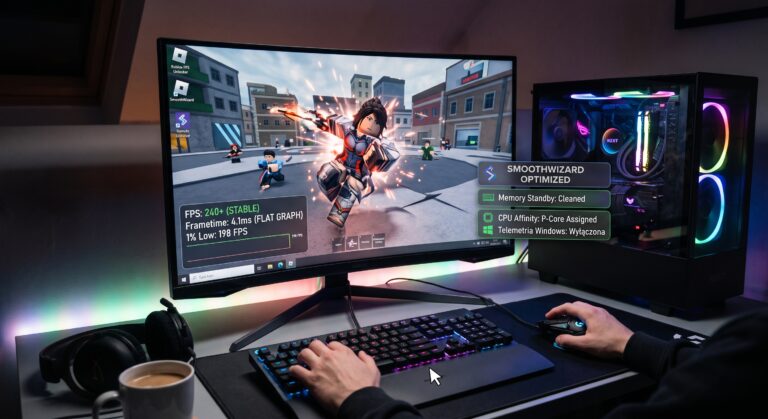

Roblox has long since ceased to be a simple platform with low system requirements. Today’s advanced games built on the platform’s engine – from graphically complex worlds such as Frontlines and Deepwoken, through dynamic PvP arenas like The Strongest Battlegrounds and Blade Ball, right up to the massive Blox Fruits servers – can bring even high-performance gaming PCs to their knees.
Many players face a paradox: the monitor displays the maximum frame rate, yet the character still moves jerkily, the camera stutters, and during crucial battles the screen suddenly freezes for a second. Sometimes, it puts me off playing altogether.
The guide below explains the architecture of the Roblox engine, the causes of frame time issues, and methods for fully stabilising gameplay at the Windows level using the SmoothWizard programme.
Why does Roblox lag even on a powerful computer?
The main problem with the Roblox platform is its hybrid nature: it combines a universal physics engine with network code and Lua scripts created by independent developers.
Here are the key reasons for the instability:
Artificial 60 FPS cap and frame queuing: The default engine caps rendering at 60 frames per second, which results in a noticeable lack of smoothness and stuttering on modern monitors with refresh rates of 144 Hz or 240 Hz.
Single-threaded load: Most of the physics and game logic calculations primarily burden a single main CPU core. When Windows assigns a background task to the same core, micro-stuttering occurs.
Cache buffer overflow (Standby List): The constant loading and unloading of assets (textures, models, animations) clogs up the system’s RAM buffer. When there is a shortage of free memory, the system freezes the game for a fraction of a second to free up space.
Conflicts with Windows processes: Default telemetry services, Windows Defender scanning temporary files, and messaging apps constantly hog the processor’s time.
Step 1: Internal Roblox client settings
Before making any major changes to the operating system, you should adjust the basic settings of the client itself:
Manual graphics settings instead of automatic: Automatic mode constantly adjusts the rendering quality based on the scene’s load. These dynamic fluctuations cause frame time instability. Set the mode to manual and fix the slider setting.
Disable unnecessary overlays: Turn off Discord, GeForce Experience and screen recording applications that capture the game client window.
Unlock the frame rate: Use the native frame rate unlock option in the client menu (or a trusted tool such as FPS Unlocker) to match the frame rate to your monitor’s refresh rate.
Step 2: Optimising Windows for the Roblox engine
The Roblox client runs in a Windows environment, which by default treats it as a standard office application rather than a high-priority gaming process.
Disabling full-screen optimisation
The default Windows Window Manager (DWM) introduces an additional frame buffer.
Open the Roblox client installation folder (
%localappdata%\Roblox\Versions).Right-click on the executable file
RobloxPlayerBeta.exe.Select Properties, go to the Compatibility tab and tick the ‘Disable full-screen optimisations’ option.
Limiting background tasks and telemetry
During PvP matches, the sudden activation of the Windows file indexing or telemetry service causes the frame time to jump immediately from 16 ms to over 80 ms, which in games such as Blade Ball results in a missed shot.
Step 3: Automatic game stabilisation with SmoothWizard
Manually clearing memory and managing processes before every game launch is a hassle. The SmoothWizard tool automates these processes in the background, ensuring an optimal environment for the Roblox client.
1. Eliminating 1% low FPS drops and clearing standby memory
When travelling across large maps (e.g. in Blox Fruits), Roblox constantly fetches new textures from the servers. Windows stores old data in standby memory, which eventually leads to congestion.
The SmoothWizard solution: The automatic memory cleaning module constantly monitors and refreshes the RAM buffer. This ensures the game client always has immediate access to free RAM, completely eliminating sudden frame rate drops.
2. Dedicated CPU core control (Affinity Management)
As the Roblox engine relies on single-threaded performance, sharing a core with other programmes drastically reduces frame rate stability.
The SmoothWizard solution: The application assigns the game process to the fastest physical core of the processor (P-Core), whilst moving secondary applications (browsers, instant messengers, launchers) to reserve or energy-efficient cores (E-Cores).
3. Safe Windows Debloat via a System Restore Point
The system optimisation module built into SmoothWizard PRO removes unnecessary system bloat:
It disables telemetry services and aggressive diagnostic data collection.
It suspends resource-intensive scans whilst in full-screen mode.
Stability guarantee: Before making any changes, SmoothWizard automatically creates a new System Restore Point, allowing you to revert the changes at any time with a single click.
Performance comparison: Before and after optimisation:
| Parameter | Before optimisation | After optimisation with SmoothWizard |
| Average FPS | 60 (Locked) / unstable 110 | Stable 144 / 240 (Adjusted to monitor) |
| 1% Low FPS | Drops to 25-35 FPS during combat | Stable 95-120 FPS |
| RAM usage (Desktop) | Approx. 4.5-5.5 GB | Reduced to 2.5-3.2 GB |
| Frame time | Jittery graph, visible micro-stuttering | Flat, stable graph with no jerks |
Frequently Asked Questions (FAQ):
Is unlocking the FPS limit in Roblox safe for my account?
Yes. Removing the frame rate limit is widely accepted by the platform, and the client itself has introduced native support for higher refresh rates in newer versions.
Does SmoothWizard interfere with Roblox game files?
No. SmoothWizard operates exclusively at the level of Windows configuration, RAM management and CPU thread allocation. It does not modify game files, client process memory or network code, which guarantees 100 per cent security in terms of the platform’s security measures.
Why does the game stutter when I move the camera quickly?
This issue is usually caused by the graphics driver mapping the game window incorrectly or by a sudden drop in the 1% Low FPS metric due to a lack of free RAM. Applying the display mode optimisation and memory clearing features in SmoothWizard effectively resolves this issue.
