

You’re buying a modern computer: a multi-core processor, a fast NVMe SSD, 32 GB of RAM. Everything should run at lightning speed – folders should open in a fraction of a second, and the system should respond instantly to every mouse click.
Yet after a few weeks of daily use, the computer starts to experience strange delays:
The Start menu and search function open with a delay of a second.
Switching between browser windows and Office programmes is no longer smooth.
The fans can suddenly rev up even when nothing demanding is happening on the screen.
Many users assume that “this is just part and parcel of the new Windows”. In reality, the problem isn’t a lack of hardware power, but OS overhead.
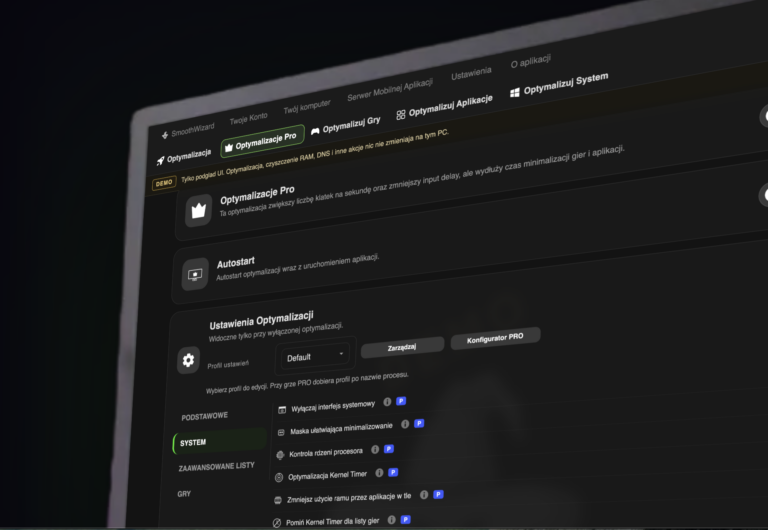
Below, we explain the 5 hidden bottlenecks in Windows 11 and show how SmoothWizard helps restore the system’s original responsiveness for everyday tasks and streaming.
1. RAM compression and application responsiveness
By default, Windows 11 has its memory compression mechanism enabled.
The principle behind it is simple: rather than swapping unused data to the hard drive, the system compresses it within RAM using a processor algorithm.
When is this helpful? In budget office laptops with 4 GB or 8 GB of RAM – it helps prevent the system memory from becoming completely full.
When is it a problem? On modern computers equipped with 16 GB, 32 GB or more of RAM. The processor constantly wastes processing cycles on compressing and decompressing data in the background, which introduces microscopic delays in desktop responsiveness.
How does SmoothWizard solve this?
The programme analyses the amount of RAM installed. If it detects 16 GB or more, it automatically disables memory compression. As a result, the processor does not waste power constantly compressing files in the background, and access to open applications becomes instantaneous.
2. Shader Cache and disk bottlenecks
Most people associate the shader cache exclusively with 3D games. In reality, almost all modern software now utilises GPU hardware acceleration:
Web browsers (Chrome, Edge, Opera) for smooth page rendering.
Messaging apps and collaboration platforms (Discord, Slack, Microsoft Teams).
Graphics programmes, video editing suites and video players.
When graphics drivers (NVIDIA, AMD, Intel, DirectX) accumulate compiled shaders for months without clearing them, the buffer database can become fragmented or corrupted. This results in unexplained stuttering when scrolling through web pages or switching between desktops.
How does SmoothWizard solve this?
The ‘Cockpit’ tab features a Shader Cache cleaner module, which safely removes obsolete buffers from graphics drivers with a single click, without the need to manually search through hidden system folders.
3. Clogging of the swap buffer and temporary memory
During long hours of office work, video editing or programming, you open dozens of tabs, PDFs and documents. When you close them, Windows does not remove them from memory straight away – it stores them in what is known as the ‘standby cache’.
Traditional free ‘RAM-cleaning’ programmes operate aggressively: they forcibly terminate processes, which results in crashes and programmes taking a long time to reopen.
The SmoothWizard approach: Safe Swapfile
The application uses a methodology similar to the Unix swap file mechanism. Instead of forcibly removing applications from memory, SmoothWizard safely moves inactive memory pages to the hard drive. Your programmes remain open and stable, whilst the system immediately recovers gigabytes of free RAM for new tasks.
4. Overloaded context menus and telemetry services
Windows 11 has introduced a new, simplified right-click menu, which, paradoxically, runs more slowly than the one in Windows 10. In addition, analytics services run continuously in the background:
Collecting diagnostic logs and telemetry reports.
Indexing files during periods of high disk load.
Information widgets and notifications that generate hidden network connections.
System optimisation in SmoothWizard PRO
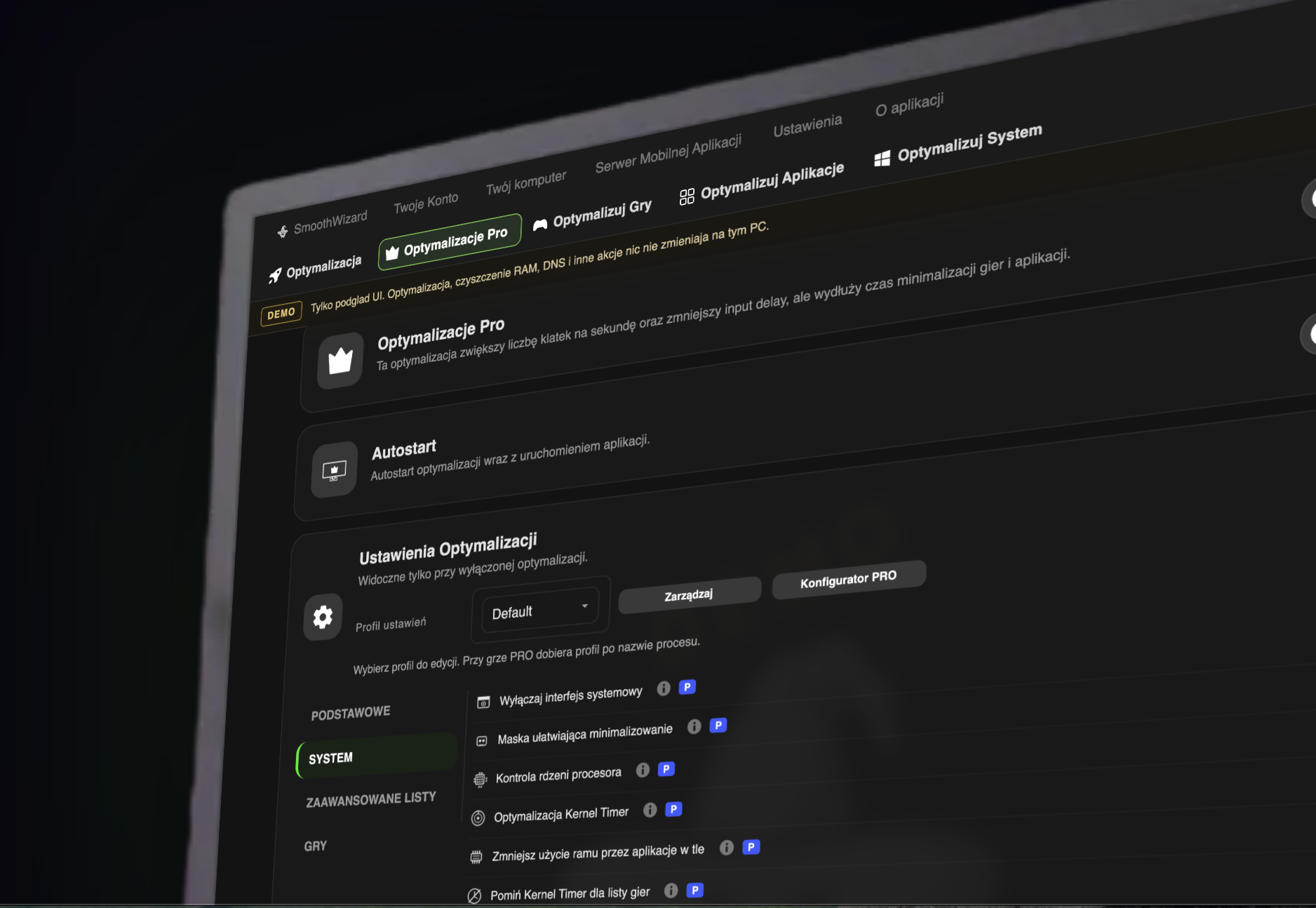
Restoring the classic menu: With a single toggle in the dashboard, you can restore the fast context menu from Windows 10 without restarting the entire computer.
Safe debloat: The built-in configurator analyses your hardware and disables diagnostic services that waste resources.
Stability guarantee: Every modification is performed with an automatic System Restore Point in place, so you can revert the changes at any time.
5. Remote PC status monitoring without switching on the monitor
For many users, the lack of control over what the computer is doing in the background whilst rendering a project, downloading large files or acting as a home server is a problem. Running resource-intensive diagnostic programmes on the desktop puts an additional strain on the processor.
SmoothWizard Mobile Server (Smart Home for PC)
SmoothWizard includes a free, built-in mobile server module:
You connect your smartphone to your computer via the local network.
On your phone’s screen, you can view real-time temperatures, clock speeds, RAM timings and CPU load.
You can remotely change the optimisation profile, close a frozen background process or log out of the computer without having to go to your desk.
Comparison: Stock Windows 11 versus the optimised system
| Scope of operation | Stock Windows 11 | After optimisation with SmoothWizard |
| RAM usage whilst idle | 4.5-6.0 GB | Reduced to 2.2 – 3.0 GB |
| Memory compression (with 16 GB or more) | Active (places a load on CPU threads) | Disabled (full memory speed) |
| Response to right-click | Noticeable menu delay | Instant classic Windows 10 menu |
| Clearing temporary memory | Manual commands / aggressive process killers | Secure swap file mechanism |
| Windows Update updates | They often restore bloatware | Automatic restoration of recommendations |
FAQ: Frequently Asked Questions
Is it safe to disable RAM compression?
Yes, provided your computer has at least 16 GB of RAM. With this configuration, the system has sufficient physical space and does not need to waste the processor’s computing power on data compression.
What happens to SmoothWizard settings after a Windows update?
Major Windows Update installations can reset services to their factory defaults. SmoothWizard has a dedicated ‘Restore after Windows Update’ feature – when an update is detected, the programme displays a notification and allows you to restore the optimal configuration with a single click.
Does the programme close open browser tabs whilst clearing RAM?
No. The method used to clear inactive data does not terminate processes. All open documents, tabs and projects remain active and unaffected.
