
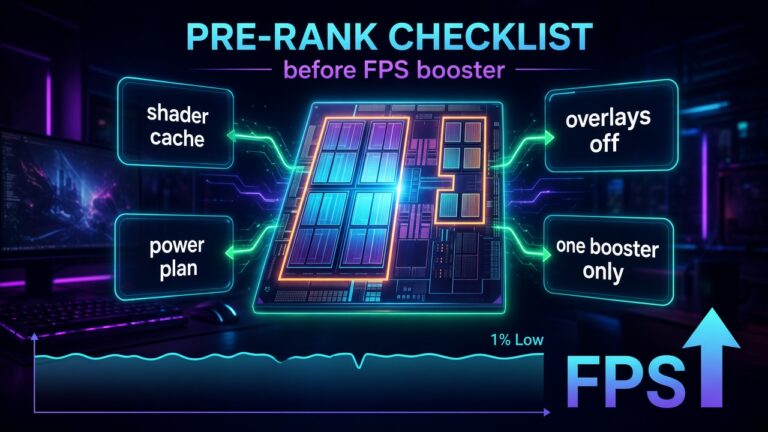

Pre-rank checklist for fall – before you grab a booster
19 October 2026 · Windows 10/11 x64
New season, fresh battle pass, friends waiting in the Discord lobby. And right then the old reflex returns: type “FPS booster” into a search bar and download one more tool. Before you do, give a short checklist fifteen minutes, because most fall smoothness problems have very down-to-earth causes.
A typical story goes like this: after a patch the game rebuilds shaders, Windows brings back some overlay after an update, the laptop runs on battery, and two “optimization” tools sit in the background. The result is micro-stutter at the worst moment of a round. A booster will not rebuild shaders for you and will not turn off an overlay you cannot see.
This post is the order of steps with the reason behind each one. No invented FPS numbers and no third optimizer on the list.
Download SmoothWizard · Booster or checklist · Pro
Why the order matters
Each step rules out one group of causes. If you start by changing the power plan and the real culprit is an overlay, you will never learn what actually helped. So you change the cheapest and most likely things first and only then reach for tools. After each step it is worth playing one short, repeatable scene.
The fifteen-minute checklist
- Clear the shader cache with the SmoothWizard tray card (NVIDIA, AMD, or Intel). Close the game first so files are not locked.
- Turn off Discord Overlay, Steam Overlay, the GeForce or Adrenalin overlay, and Xbox Game Bar captures.
- On a laptop, plug in the charger. On battery, hardware often limits clocks regardless of in-game settings.
- Turn V-Sync off in the game and set a frame cap that fits your monitor refresh rate.
- Keep one background tool. Cortex, Hone, and SmoothWizard together are a recipe for service and power plan conflicts.
- Record average FPS and 1% lows on the same scene so you have a baseline.
What each step fixes
| Step | Typical symptom | Why it helps |
|---|---|---|
| Shader cache | Hitching after a patch or driver change | Stale data stops clashing with the new game build. |
| Overlays | Random hitches, dips on notifications | Fewer processes hook into the game render path. |
| Power | Smooth for a minute, worse later | CPU and GPU are not throttled by a saver plan. |
| Frame cap | Uneven frametime despite a high average | An even frame rhythm often matters more than the top number. |
| One tool | Odd service behavior after an install | Two programs do not rewrite the same settings. |
What a good measurement looks like
Pick a scene you can repeat: the same practice mode, the same spot on a map, the same warm-up time. Record average FPS and 1% lows before and after a change. One change at a time, otherwise you cannot tell what worked. If nothing moves after the whole list, that is information too: the problem lives elsewhere, for example in hardware or the network.
When overlays are the culprit, the dedicated guides help: Discord overlay and Xbox Game Bar.
Where SmoothWizard fits
Basic gives you the power plan and a cockpit: temperatures, shader cache, DNS, and repairs. PRO adds pausing selected processes on fullscreen, core settings, and game configs. Buying PRO does not guarantee higher FPS. It is a tool for background order, not a magic button. You get a seven-day trial to try it.
When to reach for a tool and when not to
If after the checklist you still see spikes in the same places and a few processes regularly eat resources, a background-pausing tool makes sense. If the problem disappears once you turn off an overlay, install nothing. The best booster is the one you never had to download.
Common traps right before ranked
The biggest trap is changing many things at once right before an important match. You install a new driver, change graphics, launch a new tool, and then you do not know what caused the problem. The second is judging by one match: a worse ping or a slow server can ruin the impression regardless of your PC. The third is chasing other people’s settings from videos. Run the checklist the day before, play a warm-up, and leave the hardware alone when ranked starts.
FAQ
Click a question to expand the answer.
Is a booster alone enough after a big patch?
Rarely. Shaders and overlays first, then Windows background. A booster sits at the end of the chain, not the start.
How many boosters at once?
One. Two tools on the same services and power plan get in each other’s way and make diagnosis harder.
How often should I clear the shader cache?
After a big game patch, after a driver change, or when you see odd hitches. Not as a morning ritual.
Does a frame cap reduce smoothness?
A well-chosen cap usually improves it by stabilizing frame time. A cap set too low for your monitor refresh rate can feel jerky, though.
Does the checklist work on Windows 10 too?
Yes. The steps are about games and overlays, not a specific Windows version.
