
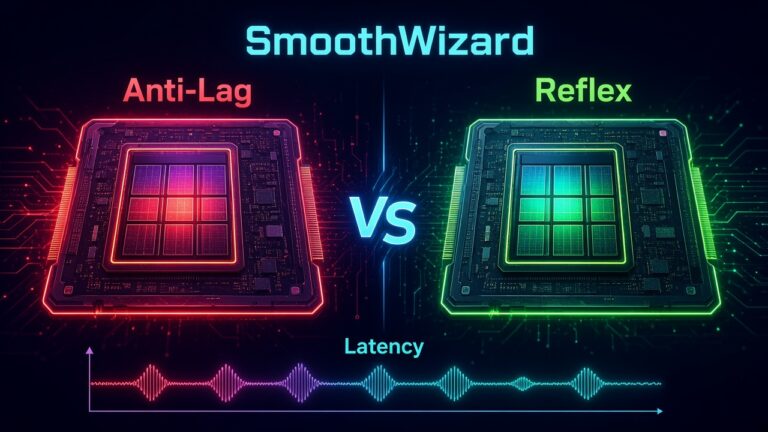

AMD Anti-Lag vs NVIDIA Reflex – when to test which
23 October 2026 · Windows 10/11 x64
On forums and in video comments the same advice keeps showing up: “turn on Anti-Lag, because I had Reflex on NVIDIA and it was great”. It sounds reasonable, but it mixes up two different things. Reflex and Anti-Lag are separate mechanisms from two GPU makers, and you have one of those cards in your PC, not both.
Then come numbers from other people’s tests. Someone gained a few milliseconds on a different card, in a different game, on a different monitor, and that becomes a “mandatory setting”. Your latency depends on your setup, and the only honest method is to test on your own machine, on one scene, with one change at a time.
This post gives you a simple map of both technologies, a plan for On and Off testing, and the boundary of what SmoothWizard does. No invented milliseconds from YouTube.
NVIDIA Reflex in CS2 · AMD Adrenalin · Download SmoothWizard
Quick map: who handles what
| NVIDIA Reflex | AMD Anti-Lag | |
|---|---|---|
| For whom | GeForce cards | Radeon cards |
| Where you enable it | Usually in game options (for example CS2: Settings → Video) | On the driver side in Adrenalin |
| Modes | Disabled, Enabled, Enabled + Boost | On or Off, newer variants depend on driver and game |
| What it changes | How frames are queued between CPU and GPU | A similar goal: a shorter render queue |
| Pitfall | Stacking Ultra Low Latency in the panel on top | Enabling blindly without a test |
The general idea of both is similar: shorten the time between your mouse move and the image. The path differs, so results do not transfer from one brand to the other. The NVIDIA panel option Low Latency Ultra is a third thing and not a synonym for Reflex.
Why you do not enable both at once
A single card offers only one of the mechanisms, so “both technologies” really means two settings from the same vendor that overlap. On GeForce, when Reflex runs in the game, you do not add a second trick in the panel. CS2 details are in the Reflex guide. On Radeon, stick to what the current Adrenalin offers. An older Anti-Lag+ variant caused anti-cheat problems in one game and was pulled, so do not hunt for old drivers just to get it back.
How to test so the result means something
- Turn overlays off, because they add delays of their own and blur the picture.
- Change one thing at a time: Reflex Enabled or Anti-Lag On, never several at once.
- Play the same scene a few times and record average FPS, 1% lows, and your own sense of mouse latency.
- Check Boost or newer AMD variants only in a second pass, once your baseline is written down.
- Repeat the “I feel a difference” judgment after a break. First impressions can be placebo.
When latency really matters
If you play a title where the GPU is heavily loaded, the render queue grows and latency is easier to notice. At very high frame rates in a light game, the effect can be negligible, and sometimes a lower frame cap gives a similar improvement without touching the driver. That is why an On and Off test only makes sense in your game and at your graphics settings.
SmoothWizard
The tool does not switch Reflex or Anti-Lag. It can clear the shader cache after a driver update and tidy the background (Basic and PRO), which lowers the risk of mistaking hitches for latency. If you want to test both from a clean start, download SmoothWizard and begin with the cockpit.
How to read the test results
A difference of a few percent usually sits within the natural spread of measurements, so do not declare a winner after one run. Look for a repeatable change: does the mouse feel more immediate after enabling the option, and did 1% lows get worse in return? If latency seemingly dropped but hitches appeared, that trade is usually not worth it. Write the result down, come back to it after a week, and only then decide what stays.
FAQ
Click a question to expand the answer.
Is Anti-Lag the same as Reflex?
No. Different vendor, different path. You only compare feel and 1% lows on your own PC.
Should I enable Ultra Low Latency together with Reflex?
With Reflex active in the game, you do not add Ultra in the NVIDIA panel as a second trick. Details are in the Reflex guide.
Does Reflex work in every game?
No. A specific title has to support it. If you do not see the option in the game settings, there is nothing to enable.
Should I treat a setting from someone’s video as certain?
No. Treat it as an idea to check, and base the decision on your own test.
What if I get more hitches after enabling it?
Go back to Off. Every PC reacts differently, and no improvement is a normal test result.
