Fortnite stutter after a patch – cache, Performance, background
25 October 2026 · Windows 10/11 x64
A big Fortnite patch lands. You download it, launch the game, drop onto the island, and after a few seconds the frames feel less even than yesterday. The image smears during the landing, hitches appear at the first fight, and a thought keeps nagging that you need to buy or download something stronger.
A new game version often means new shaders, which is new data that has to be compiled during the first seconds of play. On top of that, after Windows and driver updates, overlays you turned off like to come back. The result is a problem with three sources at once while you blame a fourth.
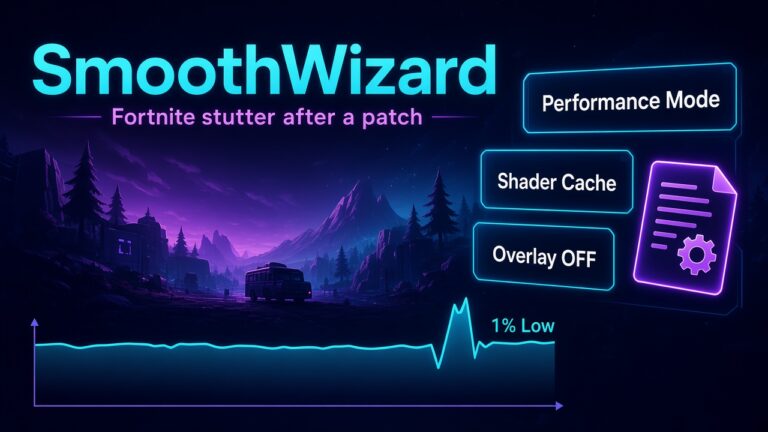
Before you blame your booster, tick three things: Performance mode, cache, and overlays. Below we explain why each one matters and in what order. No invented FPS from someone else’s Creative map.
Performance Mode · Download SmoothWizard · Pro
Why a patch hitches more than usual
The game draws its image with shaders, which are small programs for the graphics card. When a patch changes graphics, effects, or models, the old saved versions no longer fit and must be created again. Until they are built, the GPU waits for them during play, which you see as a brief hitch. It usually fades after a few matches, but when old and new data mix it can last longer and be more annoying.
Checklist after a patch
- In graphics settings, choose Performance mode if you play for smoothness rather than a pretty image. It is lighter for weaker PCs.
- Close the game and clear the shader cache from the SmoothWizard tray. Do it before the next launch so files are not locked.
- For the test, turn off the Discord, NVIDIA, AMD, and Xbox Game Bar overlays.
- Keep one background tool: either your chosen booster or SmoothWizard, not both.
- Always measure in the same place, for example one warm-up map, and record 1% lows.
Which symptom points to which cause
| Symptom | Most common cause | First move |
|---|---|---|
| Hitches only during the first matches after a patch | New shaders being built | Wait a few matches, then clear the cache if it does not fade. |
| Spikes on notifications and chat | Chat app overlay | Turn off the Discord overlay and capture. |
| Low average FPS right away | Graphics settings too high for the hardware | Enable Performance mode, lower effects. |
| Smooth, then worse after a few minutes | Power or temperature | Check the power plan and temperatures in the cockpit. |
Performance mode: when it is enough
On a weaker PC, Performance mode alone often makes the biggest difference, because it lowers the load on the graphics card and CPU. The cost is a less flashy image, but in a game that demands fast reactions that is a sensible trade. If it still hitches afterwards, you move on to cache and overlays. More is in the dedicated Performance Mode guide.
Clearing cache without a ritual
Clearing shaders is not a daily habit. You do it after a big patch, after a driver change, or when you see odd, repeatable hitches. If you clear the cache every morning on principle, you force the game to rebuild data constantly, so you lose instead of gain.
SmoothWizard in this situation
Basic sets the power plan and gives you a cockpit with cache cleanup. PRO lets you pause selected background processes on fullscreen and keep a config when Fortnite is on your game list. The tool does not promise frames after every Epic patch, because some problems live in the game itself. If you want to start with background order, download SmoothWizard.
What not to do after a patch
Do not install three tools at once just because someone recommended them for Fortnite. Do not delete random folders hunting for “cache files”, because it is easy to remove something the game needs. Do not change graphics, driver, and power plan at the same time, or you lose the ability to judge the effects. A simple path works better: Performance, cache, overlays, measurement. Only when that does not help do you look further.
FAQ
Click a question to expand the answer.
Is Performance mode alone enough?
On a weaker PC, often yes. If it still hitches, check the shader cache and overlays.
Should I clear shaders daily?
No. After a big patch or an odd hitch, not as a morning ritual.
Do I always need a new driver after a patch?
No. A new driver helps when the game uses a new feature or the vendor shipped a fix for that title. You usually start with cache and overlays.
Why does a Creative match hitch differently than a match with other players?
They differ in map load and object count. For comparisons, always use the same map and the same spot.
Can I run two boosters if both have good reviews?
We do not recommend it. Two programs changing the same services and power plans make it harder to see what actually works.