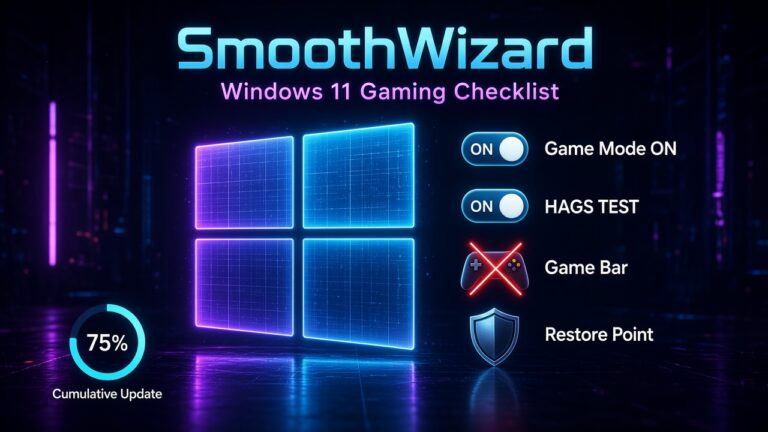

Windows 11 after a big update – gaming checklist
27 October 2026 · Windows 11 x64
In the evening you install a big cumulative update, in the morning you launch your favorite game, and something is off. It does not crash, there is no black screen, but frames feel less even, sound occasionally crackles, and after a match you get an uneasy sense that the system “changed”. The first impulse is to think about wiping the drive or going back to an older Windows.
Before you reach for something that drastic, remember that big updates can reset settings you had configured. Game Mode returns to a default state, Game Bar regains capture, and GPU scheduling (HAGS) can behave differently than before the update. These are things you can check in a few minutes.
Below is a short checklist with the reason behind each item, a table for quick checking, and an honest boundary of what SmoothWizard does. No invented FPS numbers.
Game Mode and HAGS · Download SmoothWizard · Pro
Why something changes after an update
A major Windows release does more than patch bugs. Sometimes it adds services, changes default privacy and overlay settings, installs a newer driver through Windows Update, or moves entries around in Settings. For a gamer the effect is usually not one big failure but several small things that together feel worse. That is why you diagnose step by step, not everything at once.
After the Windows restart
- Open Settings → Gaming → Game Mode and check that it is on. After an update it can be switched to a different value.
- Turn off Game Bar and captures if they jump into a match with notifications or hotkeys.
- Test HAGS: one run with it on and one with it off, restarting after each change. Keep the setting that gives you more even frames. The path is in the guide.
- Check whether Windows Update swapped your GPU driver. Do not combine a system update with a full driver reinstall on the same day without need, because when something breaks you will not know the cause.
- Create a restore point before you change anything else.
Quick check table
| What you check | Where | What to do |
|---|---|---|
| Game Mode | Settings, Gaming | Make sure it is on, then play a test scene. |
| Game Bar and captures | Settings, Gaming | Turn off if you are not recording. |
| HAGS | Settings, System, Display, Graphics | Test On and Off with a restart, pick the better one for you. |
| GPU driver | Device Manager or the vendor app | Check the version and, if needed, install the current one from the vendor site. |
| Overlays | Discord, driver, Steam | Turn off for the test. |
HAGS without myths
Hardware-accelerated GPU scheduling moves part of queue management from the CPU to the graphics card. On some PCs it helps, on some it does nothing, and on certain setups with specific drivers and games it can be worse. There is no universal answer, so the only sensible method is your own test. Run it on one scene and compare average FPS and 1% lows. A fuller description is in the Game Mode and HAGS guide.
GPU driver and restore point
When you suspect the driver, make changes one at a time. If the version after the update differs from the previous one, install a fresh package from the vendor and only then judge the result. Keep full-removal driver tools for cases where a normal install does not help. A restore point gives you an emergency exit, which saves hours of stress.
SmoothWizard after a Windows update
After an update, turn on Basic and check the power plan, because big releases like to change it. The cockpit also has shader cache cleanup, useful after a driver change. PRO adds pausing selected processes on fullscreen. The app does not switch Game Mode or HAGS for you, so you check those two manually. If you want to start with order, download SmoothWizard.
When to consider something bigger
Only if after the whole list you still see a regression in several games, and a restore point confirms it was better before the update, is it worth rolling the update back or reporting the problem. Wiping the drive is a last resort, not a first step.
What to avoid after an update
Do not instantly trust guides that tell you to switch off half the system. Windows services are often linked, and “disabling everything” tends to break something else entirely, such as updates or sound. Change single settings, note what you did, and keep a restore point at hand. That way every step can be undone without digging through the registry.
FAQ
Click a question to expand the answer.
Does every update hurt FPS?
No. When it does, the usual suspects are an overlay, HAGS, or the driver, not Windows itself.
Should I go back to Windows 10 over FPS?
That is a separate decision, tied to the Game Ready on Windows 10 topic. Go through the Windows 11 checklist first.
Should HAGS always be on?
No. Test On and Off on your PC and keep the variant that gives more even frames.
Can an update reset the power plan?
It happens. After a big release, check the active plan and set again the one you use for games.
How long does the whole checklist take?
Usually around a quarter of an hour, including two restarts for the HAGS test.