Windows · Storage
How to find large files in Windows 11 and what to do with them
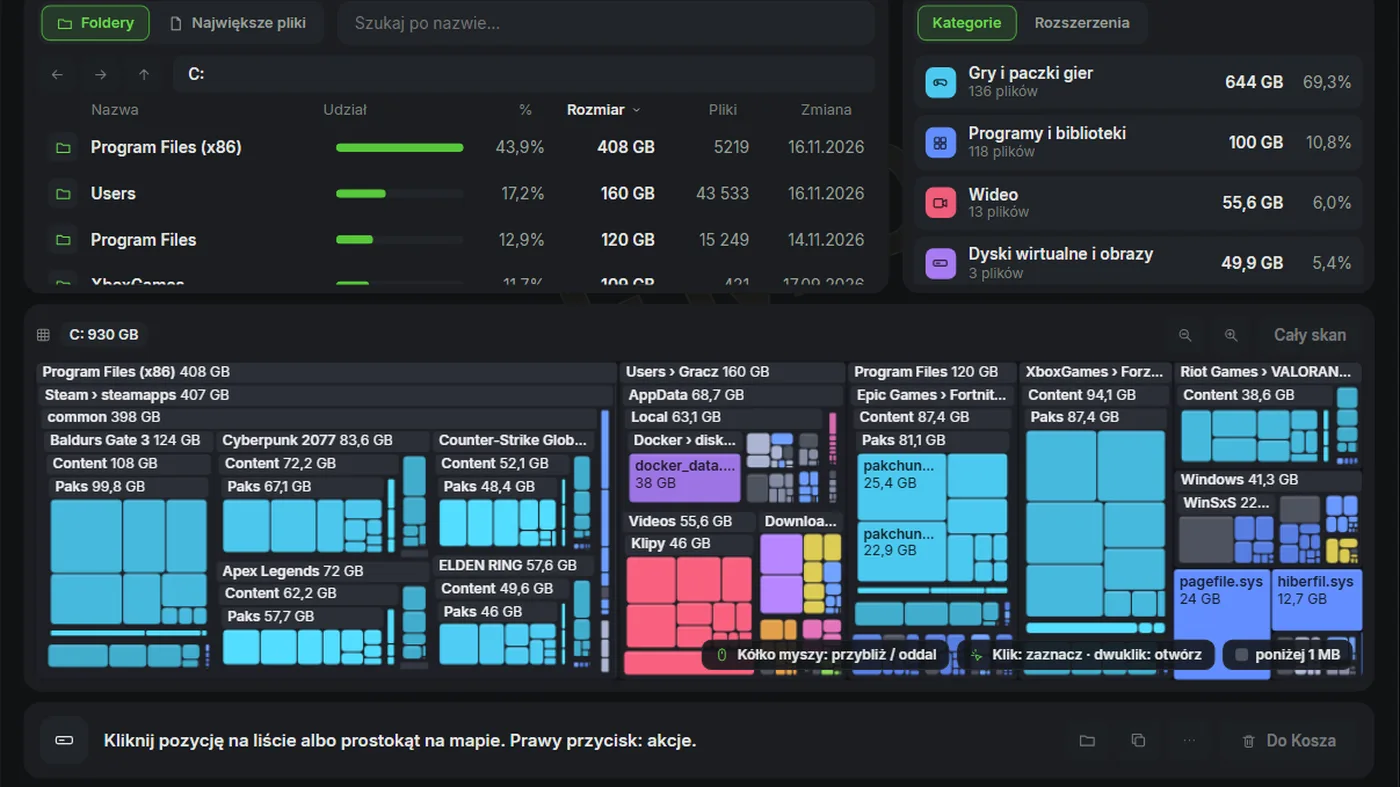
There are three ways to find large files in Windows 11. Settings > System > Storage shows which groups take space. File Explorer finds files with the size:>1GB filter. Disk analyzer in SmoothWizard (PRO) scans the whole drive and shows the largest files, folders and a map. Do not delete pagefile.sys, hiberfil.sys or the Windows folder by hand. Uninstall games in their launcher.
A game update fails because C: is down to a few GB. Before you start deleting blindly, check what is actually big.
Why it stutters
File Explorer shows file sizes, not folder sizes. Space usually goes to a few large things: a game library, match recordings, an ISO in Downloads, or a Docker or WSL virtual disk file. One of those weighs more than thousands of small files combined. So find the largest items first, then decide what to delete, move or uninstall.
Key points
- Start with Storage in Settings to see which group is big.
- The size:>1GB filter in File Explorer finds large files but not folder sizes.
- Disk analyzer in SmoothWizard (PRO, BETA) shows folders, largest files, categories and a map for the whole drive.
- Remove and move games in their launcher. Do not delete system files by hand.
- 1
Check Storage in Settings
Open Settings > System > Storage. Windows splits used space into groups such as Installed apps, Temporary files and Documents. Click Show more categories to see the rest. It is a quick overview, but the groups are broad.
- 2
Search for large files in File Explorer
Open drive C: in File Explorer and type size:>1GB in the search box. You can also use size:gigantic, which means files over 4 GB. A whole-drive search takes a while, because most folders are not indexed. The result lists files, not folders.
- 3
Look in the usual places
Downloads (ISOs, installers, archives), Videos (clips from NVIDIA App, Adrenalin, OBS and Game Bar), Steam, Epic and Xbox game libraries, and AppData\Local, where Docker and WSL keep large .vhdx files.
- 4
Scan the whole drive with Disk analyzer
In SmoothWizard open Tools > Disk analyzer, pick a drive card and click Scan. On NTFS the app reads the MFT, so a whole drive takes seconds instead of minutes. The tool is part of PRO, as a BETA.
- 5
Go through Largest files and Categories
The Largest files tab collects the largest files from the whole scan, with name search. Categories show whether games, video, virtual disks or archives are eating the drive. Clicking a category keeps only those files on the map.
- 6
Uninstall or move games in their launcher
Do not delete or move a game folder by hand. Steam can move games between libraries in its Storage settings, and other launchers have similar options. That way the launcher knows where the game is and does not download it again.
- 7
Send the rest to the Recycle Bin
In Disk analyzer, right-click a file and choose Move to Recycle Bin. You can move recordings to another drive with Move to…. Empty the Recycle Bin only when everything still works. Delete permanently skips the Recycle Bin and cannot be undone.
- 8
Leave system files to Windows tools
Leave pagefile.sys alone. hiberfil.sys goes away after powercfg /h off, which also turns off Fast Startup. WinSxS and old updates are cleaned by Disk Cleanup with system files or by Storage Sense. Disk analyzer will not let you delete the Windows folder or those files.
Notes
Settings paths and option names are from English Windows 11. Disk analyzer screenshots on the site come from the demo, with sample data.
FAQ
Click a question to show the answer. The first one is open.
How do I check a folder's size in Windows 11?
In File Explorer, right-click the folder and choose Properties. For many folders at once it is easier to scan the drive with a tool that adds up sizes, such as Disk analyzer in SmoothWizard.
What does size:gigantic mean in search?
It is a size filter in File Explorer. Gigantic means files over 4 GB. You can also type an exact value, such as size:>1GB or size:>500MB.
Can I delete pagefile.sys or hiberfil.sys?
Do not delete them by hand. Windows manages the paging file. The hibernation file goes away after you turn off hibernation with powercfg /h off.
Why did I not get space back after deleting files?
Files in the Recycle Bin still take space. Empty the Recycle Bin. A file in use by a program may also free space only after that program closes.
Is Disk analyzer free?
No. Disk analyzer is part of PRO, as a BETA. The PRO trial runs in the app for 7 days. Storage and File Explorer search come free with Windows.
Will free space raise my FPS?
Do not count on it. Free space helps with game updates, recordings and the paging file, but frame rates depend on hardware and settings.